Showing posts with label Visual Studio 2010. Show all posts

Wednesday, July 3, 2013

TFS Build number used as AssemblyVersion in AssemblyInfo.cs


Finally, after years of struggling with AssemblyInfo.cs files to be updated to track assembly versioning, here IS an EASY WAY to do this thing, which should have been made easy in the first place in TFS. In the past, I used a more sophisticated way of doing it.

The credit to this method goes to Steve Fenton, who explained his method called "Automatically Updating Your AssemblyInfo The Wrong Way".

To me it is less elegent than doing a full workflow foundation solution, but it solves my problem quick ! So that a good solution. Secondly, maintenability is also great, as it is based on a plain text Batch file. No need to recompile deploy, …

The secret lies the following steps :

  • Using a Team Foundation Build Activities called “InvokeProcess” that is dropped inside the “Run on Agent” process, just after the “Initialize Workspace”.

    More details on a old Post of mine back in 2010, where and how precisely how to operate it.

    This Process simply calls a Batch file that creates on the fly an AssemblyInfo.cs.
  • This “AssemblyInfo.cs” file is inserted on ALL the *.csproj that are part of your solution “As a Link” image


image

  • the only mini-change that one could barely notice the link icon on the AssemblyInfo.cs file. Here is a representation in both Visual Studio 2013 Ultimate preview and Visual Studio 2012 Ultimate


ZOOM ! on AssemblyInfo.cs
image
image


The result is instantaneous … on every single step of my software factory, it is highly traceable with the unique ID of the TFS Team Build of 370, as illustrated below.

image

(1) Displays on an “About Page” the exact version of the application, based on the assembly version of the AssemblyInfo.cs,

(2) This version number is dynamically generated by TFS Team Build during the Continuous Deployment process (called _CD).
This guaranties the uniqueness of this number. In this example, it is Build# 370, which gives a version 1.0.0.370.
As a result, we could go up to 1.0.0. 65534,
where 65534 = UInt16.MaxValue – 1= 65535-1
Then you can open the TFS Drop Folder to verify that ALL your assemblies have the correct assembly version.

(3) From TFS Cloud, you’ll get a Zip file that has got the unique suffix “CD_370”, and in the App.publish, you could unzip the Windows Azure package *.cspkg

(4) Once unzipped into the folder “???CD_370”, you’ll see the DLLs

(5) Check the first DLL; we could see the magic happened: The assembly is tagged as 1.0.0.370

(6) Check another Assembly: still 1.0.0.370 !!

DONE ! and Enjoy !!

And the most time consuming part to was to find the proper solution, since many great alternatives are present in CodePlex. I’m sharing this trick hoping it’ll save you plenty of time… and another wish is that one day, an easy feature to activate will appear TFS / VSO !!


Note: If needed, here is an example of a batch file.

SET version=%~1
SET outfile=%~2

SET year=%DATE:~6,4%
ECHO off
if "%outfile%"=="" SET /p "outfile=[Full Path] "
if "%version%"=="" SET /p "version=[0.0.0.0] "
REM %tfstool% checkout %outfile%
ATTRIB -r %outfile%
ECHO using System.Reflection; > %outfile%
ECHO using System.Resources; >> %outfile%
ECHO using System.Runtime.CompilerServices; >> %outfile%
ECHO using System.Runtime.InteropServices; >> %outfile%
ECHO

ECHO //// This file is auto generated by AssemblyVersion.bat >> %outfile%
ECHO [assembly: AssemblyTitle("Viseo")] >> %outfile%
ECHO [assembly: AssemblyDescription("This AssemblyInfo.cs is automatically generated by TFS Build")] >> %outfile%

ECHO [assembly: AssemblyConfiguration("")] >> %outfile%
ECHO [assembly: AssemblyCompany("Viseo")] >> %outfile%
ECHO [assembly: AssemblyProduct("Viseo")] >> %outfile%
ECHO [assembly: AssemblyCopyright("Copyright © 2013-%year% Viseo. All rights reserved.")] >> %outfile%
ECHO [assembly: AssemblyTrademark("")] >> %outfile%
ECHO [assembly: AssemblyCulture("")] >> %outfile%
ECHO [assembly: ComVisible(false)] >> %outfile%

ECHO //// Version information for an assembly consists of the following four values:
ECHO ////
ECHO //// Major Version
ECHO //// Minor Version
ECHO //// Build Number
ECHO //// Revision
ECHO ////
ECHO //// You can specify all the values or you can default the Revision and Build Numbers
ECHO //// by using the '*' as shown below:
ECHO [assembly: AssemblyVersion("1.0.0.%version%")] >> %outfile%
ECHO [assembly: AssemblyFileVersion("1.0.0.%version%")] >> %outfile%
ECHO [assembly: NeutralResourcesLanguageAttribute("en")] >> %outfile%

REM %tfstool% checkin %outfile% /comment:"***NO_CI*** Assembly Info Increment" /noprompt

Tuesday, April 3, 2012

Lesson learned: ALM with SQL Azure and new tools (SQL Server Data Tools and latest DACPAC Data-Tier Application project)

The number of tools, either in CodePlex, in CTP, or MS released, or Third-party to manage the Windows Azure are numerous. To add some more complexity, the very same tool (e.g. SQL Management Studio), allows you to perform the same action but using many possible ways. Thus the degree of freedom is huge. However, not ALL combination works or sometimes not documented at the moment, or you have to find a KB to understand why it does not work the way it should.
This post provides an easy way of migrating your on-premise database into SQL Azure, and use the latest Microsoft tools to have a better SQL ALM than ever before.
After having migrated your on-premise database, by completing the first 4 steps from my previous post (the other steps just provide a ways to check the integrity of your migration), you’ll need to create a DACPAC project. However, this time you’ll be using the following latest Microsoft tools:
* SQL Server Data Tools [free], that extend your Visual Studio 2010 capabilities  http://msdn.microsoft.com/en-us/data/gg427686 (check all pre-requisites, which could take up to 1 hour of install). You could consider using Visual Studio 11 Beta… but only for SQL Azure / DACPAC projects (Indeed, Windows Azure bit is another story with VS11 Beta).
This extension allows to work with *.sql file in a better way, as we will see later.

* SQL Server 2012 Management Studio [currently, get it SQL Server 2012 and uncheck everything, except Management Studio].
I would recommend not using SQL Management 2008 (unless you want to have some frustrations). indeed, with the latest version of Data-Tier Application projects it presents some minor limitations/ (bugs ? It’s a feature ? Smile) and its working principles has been ‘improved’ in “SQL Server 2012 Management Studio”.
To create a new type of Data-tier Application project, called “SQL Server Database project” within Visual Studio 2010, follow step 5 to 7 of my previous post mentioned above (as a reminder, you need to install SQL Server Data Tools).
You could also let “VS2010 with SQL Server Data Tools” migrate an existing VS2008 DB project:
image
In the new type of DB project’s property, you should target the “SQL Azure” platform, and set the Data-tier Application properties to a suitable version number (this number is used by the “intelligence” of DACPAC that is now handed by SQL Server 2008 R2 or 2012. We don’t deploy any longer “stupid” *.sql files).
image
It could be noted that by using this new type of DB project, you could decrease your amount of *.sql files considerably. For instance, going from 800 files to 100 files, depending on the complexity of your database. This is due to the fact that the new one is organized differently:
* No more huge amount of crazy sub-sub-sub-sub-folder and numerous files for every single index, constraints, etc… . Here is an example of a old VS2008 DB project applied to a very basic and small project (ASP.Net membership provider):
image
* Now, everything is nicely grouped into a more “SQL-server-like” fashion way. On the top panel below (1), you’ll find a visual SQL designer of a Table with its associated constraints and properties, and on the bottom pan (2), you’ll find the plain-text version like the old fashion way… except that your constraints, indexes, … are now part of the same *.sql file.
The gain in the number of files also means less files to get/check-in and track in terms of source control.
image
You could notice also few variations in the “Build” options on the *.sql file’s properties (3). However, unless setting additional deployment files to Build=”None” or “Build Extension Configuration” I did not manage to make it work properly (as in VS2008) when using related *.sql files called from a master *.sql file using the “:r” option.
With this type of project, by targeting “SQL Azure”, which represents the most constraining scenario (because your T-SQL has to be cleaned-up), you can publish either On-Premise or on SQL Azure using the very same T-SQL (you might add some IFs if you really need specific SQL instructions on SQL Azure).
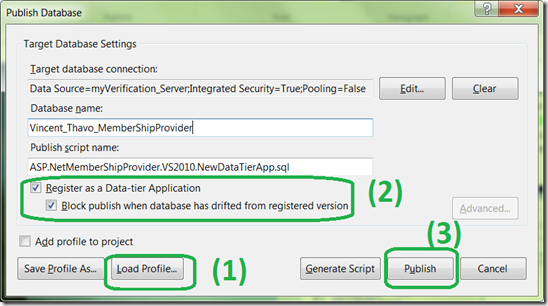
As far as Publishing is concerned, you could define a configuration file per environment (e.g. click (1) to load various profiles, such as on-premise staging,on-premise validation, localhost, SQL Azure staging,  SQL Azure  PROD, …). To get the new publish window (notice it is not called “deploy” anymore), right click on your VS DB project > “Publish…”, somehow wait for 2 to 10 seconds before the modal pop-up appears:
image
Ensure you have checked the 2 options (2) to benefits from the latest DACPAC type of deployment, and simply click (3) [which also means you could deploy the old fashion way by configuring the numerous options on Advanced…].

During the publishing, you’ll see a new output window that keeps it nice and tidy as opposed to the previous plain text version. It reminds me the Publish for Windows Azure, … but in a more usable way ! (i.e. no tiny reports with a tiny scrollbar and when a bugs occur, you don’t know what happens). I like this new “Data Tools Operations” output window :
          - it has many “view details” links to open a full-size window when needed
          - it could be collapsed (such as Win Azure deployment)
          -…
. It also seams to deploy/publish and generate data a lot faster that its previous version (may be due to better caching).
image
Now if you want to deploys into SQL Azure, simply load the corresponding config file, then here you go, it’s on SQL Azure in 1 click ! Now you could use a command line to perform that so that a TFS-Build could automatically publish that for you (I would not recommend, since it will start to impact considerably you Windows Azure bill if you publish continuously 10 or 20 times a day for instance).
Example of deployment time a database with less that 100 MB data to be populated
- on local DB : 5 sec
- on SQL Azure (broadband): 4 min
- on SQL Azure (USB Dungle Internet, and no broadband): 15 min
The last new feature that I am going to present to really ease your ALM is the “Snapshots” possibilities. Before any Staging or Prod deployment, keep track of the exact deployment package that you delivered and stores it as a Snapshot. It will store you project as a DACPAC file within seconds (recall: a DACPAC file is a Zip file of you DB schema stored as XML files), which should then be stored into you favorite code repository. In TFS, for example, it could be a TFS-Release-Branch.
image
The new possibilities allows a huge gain in productivity !!!
Although I have been using those tools on large projects, I would be really interested in anyone having further practical feedbacks, or may be different usage.

Thursday, June 23, 2011

[ALM, Unit Tests, SpecFlow] Magically generate your Unit Tests from the Specifications !!


(Sorry not translated from my French Blog : http://blogs.codes-sources.com/thavo/. Google Translation will help you)
Ce serait le rêve de générer par magie ses tests unitaires à partir des specs avant même d’avoir écrit son_code ?
  • A la fois on serait en TDD, qui est déjà un rêve pour une majorité d’entre nous. Vous avez déjà entendu d’un Directeur/Chef de projet “Oui, c’est super les TU… mais on n’a pas le budget, le temps, il y a plus prioritaire, etc…”
  • A la fois nos TU pourraient être “écrits” par le “Business Analyst” ou Chef de projet, si c’était le cas.
BDD existe déjà depuis un bout de temps, mais je voulais parler d’un outil particulier que nous allons découvrir ci-dessous.
PS: Dans ce cas BDD pas comme “Base De Données”, mais comme Behaviour Development Driven).

Comment cela peut fonctionner dans une ALM TFS en mode Agile ??
1.  Le Chef de projet ou Business Analyst écrit les specs dans TFS en tant que User Story. Voici un exemple : image
2. Toujours le Chef de projet ou Business Analyst écrit les scénarii de validation de tests d’acceptance afin de valider la User Story précédente.
Pour cela, écrit dans un fichier texte *.feature (compatible avec le standard Cucumber-Gherkin syntax) sous Visual Studio 2010 pour disposer de l’IntelliSense !!.
PS1: il y aurait moyen de créer cela en tant que WorkItem puis générer ce fichier texte.
PS2:  Pour faire le lien avec Scrum, on peut comparer cela à la “Definition Of Done”, qui doit être composé d’éléments mesurables, donc vérifiable (pas du genre… lorsque l’on clic sur le bouton “OK”, l’écran doit s’afficher rapidement).
image

3. Ensuite, toute la magie intervient dès que l’on fait Ctrl-S pour “enregistrer” ce fichier.

Cela génère près de 100 lignes de code de tests unitaires C# (de type MsTest, mais cela pourrait être aussi xUnit, NUnit, MbUnit).

”La magie” s’appelle SpecFlow !!
image

image
4. Enfin, on peut compiler le tout et lancer les Tests Unitaires. Ne pas paniquer, si cela ne passe pas, puisque cela respecte bien le principe de TDD se basant sur le “RGR” (Red GreenRefactor). “Red”… enfin, techniquement, ci-dessous c’est Orange, car Inconclusive.
image

5. Comme c’est en “Red”, le développeur doit coder le code Business (ou bien le connecter ou bien injecter des objets existants) afin de le faire passer au Green. Pour cela, il suffit de copier / coller le code en bleu ci-dessous généré par TeamSpec (il y a probablement un autre moyen).

On colle cela dans un autre fichier; bon, pour faire passer au Green, j’ai mis partout des Assert True à titre d’exemple.

image  image
Lorsque tout est Green, on connecte le tout à la TeamBuild TFS afin d’être certain qu’il n’y ait pas de régression à chaque Check-in (si Gated Check in), ou bien tous les soirs.

Ensuite, on “Refactor” la partie Business, voir ses TU afin de faire plus propre. Puis, le CDP réitère en rajoutant des nouvelles “Definition Of Done”, donc cas recasse et nous voila reparti pour le cycle Red Green Refactor.

Pour aller plus loin dans les tests : Utiliser SpecFlow avec Coded-UI de VS2010 :
https://github.com/techtalk/SpecFlow/wiki/Using-SpecFlow-with-CodedUI-API

PS: Suite à l’installation de SpecFlow, ne comptez pas sur l’aide fournie pour vous donner un coup de main, mais votre moteur de recherche préféré (car l’aide PDF est en mode Brouillon et pas complet) ==> Il faut rajouter au crproj de test une référence vers l’assembly SpecFlow et un fichier App.Config contenant les informations suivantes (MsTest, mais vous pouvez choisir les autres types).

Wednesday, May 4, 2011

Comparing MS Word documents from within VS2010

Update: This also works with EXCEL file (see PS at the end). 

Many project managers complains that TFS2010/VS2010 CANNOT compare MS Word documents
(which is a bad practice anyway because it not a source code, and should be stored in a document repository where workflow of validation and search engine are present).

I understand that Microsoft spend their efforts in using Sharepoint as a document repository, hence not implementing this functionality in VS2010 / TFS 2010.

This is even more bizarre when knowing that TurtoiseSVN performs that natively !

Here is a trick to have the best of the two worlds : Use TurtoiseSVN from within VS2010, and still keeping TFS2010 as a Source Control.

1. Download and install TurtoiseSVN (it's free),


2. Customize the comparison Tool within VS2010, and instead of the default one, do the following :
Visual Studio > Tools > Options > Source Control >Visual Studio Team Foundation Server > "Configure User Tools..." button

Use the following parameters (adjust your TortoiseSVN's installation folder if required) :
  • Extension: docx
  • Operation: Compare
  • Command: C:\Windows\System32\wscript.exe
  • Arguments: "C:\Program Files\TortoiseSVN\Diff-Scripts\diff-docx.js" %1 %2 //E:javascript


That's it !

Now, do your normal comparison within VS2010, based on the History for example :

After a few scripts running behind the scene to open Word and configure it in a comparison mode, here is the result:

Now you can receive another version of a 200 pages of specifications, and not being  scare you any longer !!
Hope this helps speeding up your work.


PS: This also works with EXCEL (*.xlsx) file, BUT NOT REALLY GOOD, because it compares cell-by-cell and detects too many false positive changes.  
Do do so,
- Open your Program Files\TortoiseSVN\Diff-Scripts folder.
- Duplicate the file diff-xls.vbs into diff-xlsx.vbs
- Create a new comparison as presented at step 2, but this time for the xlsx extension
- Remove the option "//E:javascript" in the arguments,
- Start enjoying Excel comparison within Visual Studio :
   . It presents the 2 files side by side,
   . and highlights in RED the changes.


Wednesday, March 16, 2011

The new "Visual Studio 2010 and .NET Framework 4 Training Kit" is available


March 14th 2011 => VS2010TrainingKitMarch2011.Setup.exe is out with 412 Mb of great pleasure !
(as a comparison June 2010's version was 182 Mb)

The new version (free) of the training kit for VS 2010 and .Net 4 is available.
It's here or, search for "Visual Studio 2010 and .NET Framework 4 Training Kit" on the web.

Overview :


"The Visual Studio 2010 and .NET Framework 4 Training Kit includes presentations, hands-on labs, and demos. This content is designed to help you learn how to utilize the Visual Studio 2010 features and a variety of framework technologies including:
  • C# 4
  • Visual Basic 10
  • F#
  • Parallel Extensions
  • Windows Communication Foundation
  • Windows Workflow
  • Windows Presentation Foundation
  • Silverlight 4
  • ASP.NET 4
  • Windows 7
  • Entity Framework
  • ADO.NET Data Services
  • Managed Extensibility Framework
  • Visual Studio Team System
  • Windows Azure"

Account details for the TFS VS2010 training

A quick post, "just so we don't forget", here are the Microsoft account details for the Virtual Machines are :
createUser 'michaf' '#############' 'Michael Affronti (PM)'
createUser 'aprist' '#############' 'April Stewart (Dev Lead)'
createUser 'dorikr' '#############' 'Doris Krieger (Dev)'
createUser 'abuobe' '#############' 'Abu Obeida Bakhach (Dev)'
createUser 'chriko' '#############' 'Christine Koch (Tester)'
createUser 'chriba' '#############' 'Chris Barry (Business Stakeholder)'
createUser 'robiwo' '#############' 'Robin Wood (End User)'

The password for the TailspinToys Labs is : P2ssw0rd

Monday, November 29, 2010

Don't forget the HotFixes, FeaturePacks, QuickFixEngineering (QFE), PowerTools, ...

(update: see http://memoprojects.blogspot.com/2010/12/alm-tfs-2010-vs-2010-where-to-start.html for up to date versions given in the comments)
To properly work with VS2010 and TFS 2010, it is important to install, at least, the following :


  •  VS10-KB2403277-x86-Prerequisit-FeaturePack-2-for-VS2010.exe
    è   Pre-requisite for Microsoft Visual Studio 2010 Feature Pack 2,
    è https://connect.microsoft.com/VisualStudio/Downloads/DownloadDetails.aspx?DownloadID=32400&wa=wsignin1.0 
  • en_visual_studio_2010_fp2_x86_604352-FeaturePack2-14nov2010.msi
    è From the MSDN subscription website
  • VS10-KB2251084-x86 Cut or Copy displays 'insufficient memory' error.exe
  • VS10-KB2268081-x86-Find and Replace Dialog Growing.exe
  • VS10-KB2345133-x86-FixScrollingContextMenu.exe
  • tfpt-TFS-PowerTools-Sept2010.msi


 And why not :

  •  en_visual_studio_2010_pex_0.94.51023.0_power_tools_x64_598803.exe or
    en_visual_studio_2010_pex_0.94.51023.0_power_tools_x86_598803.exe

Thursday, September 9, 2010

TFS 2010 : What we cannot copy a build definition !!

UPDATE : Yes we can ... now with the latest TFS PowerTools (Clone Build Definition) :
http://blogs.msdn.com/b/bharry/archive/2010/09/09/sept-2010-tfs-power-tools-release-available.aspx

What !!! After having spent many hours in configuring the best ever unbreakable build with the TFS's Gated Checkin, with lots of Unit tests, Code Coverage options, a nice deployments..., you're telling me that TFS 2010 does not provide any function to copy or backup my Build Definition ???
Because, a very basic modification of the Build Definition done by mistake can breakdown everything !

Well, sorry, there's no such option with Team Explorer. However, here is a way to overcome this missing feature : To copy a build definition, you have to create your own application via the TFS API :


TeamFoundationServer tfs = TeamFoundationServerFactory.GetServer("http://myTFSserver:8080");

as explained here :
http://www.brokenwire.net/bw/Programming/122/how-to-copy-tfs-builddefinitions

NB: Talking about automated Unit Test and Test impact, here is a nice post to explain whar Test impacts are :
http://blogs.msdn.com/b/phuene/archive/2009/12/09/test-impact-with-team-foundation-build-2010.aspx

Thursday, July 15, 2010

Playing around with the Process Template "Team Foundation Server Scrum v1.0 Beta"

Although I was quite interested in trying this template, I did not expect a huge difference with the default "MSF for Agile Software Development v5.0" at first. However I was quite pleased by the little details I came across.

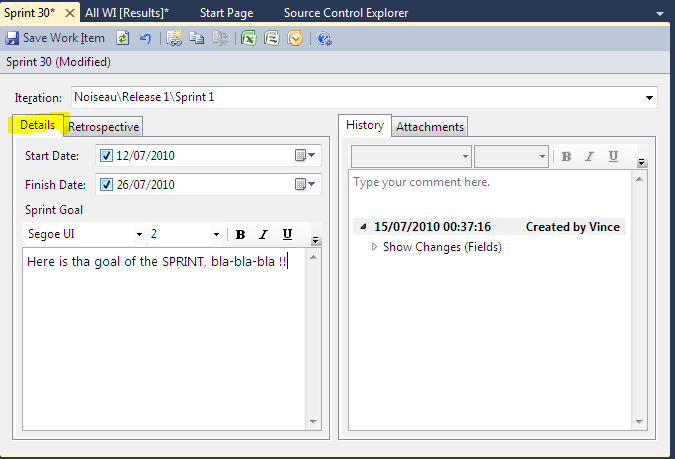
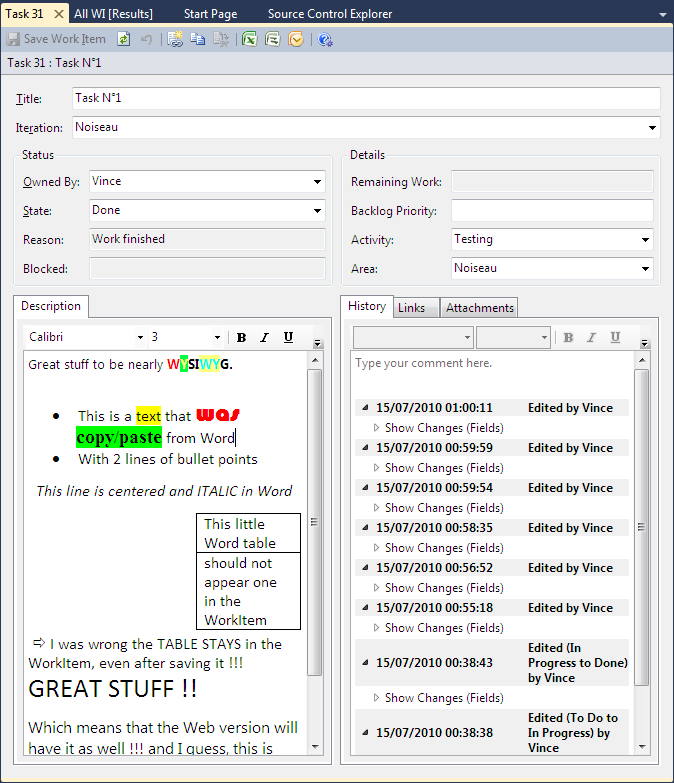
Here are the seven new WorkItems templates : Bug, Impediment, Product Backlog Item, Shared Steps, Sprint, Task, Test Case :


  • Bug:

  • Impediment:

  • Product Backlog Item:

  • Shared Steps:

  • Sprint (showing the 2 tabs Details and Retrospective):

  • Task (along with its TFS Web version):

  • Test Case:


Unfortunately, I did not try the Reports, since I have neither Sharepoint nor Reporting Services/BI on my test computer. According to what I saw on the Net, they sound great.

As for us, we just use EXCEL connected to TFS to perform automatically basic subtractions, so we can draw a line every day on the A2 sheet of paper stuck on the wall.

I particularly like the Rich Text Editor support (not only in the History part), but also in the Description part. However, the drawback of this nice advantage is that is it obviously not compatible anymore with EXCEL. Since, our Product Owner and few other people essentially work with EXCEL in sync with TFS, this could be a problem
.


As I said, I was just playing around with this template: to really evaluate it, I shoud be using this template in our production project, with real projects constraints.

As a conclusion, now that I am back to work using the "MSF for Agile Software Development v5.0" template, and knowing the advantages of the Scrum version, I just can't wait it release.

However, since it is in Beta version, and like any projects, ours is critical and due to deliver soon, I prefer sticking with the MSF Agile that works fin for us 

(I just added 2 fields and removed 1 field to suite our needs so far).


More info on Scrum methodology and how to use this template in the following video : Channel9 Walkthrough.

.

Microsoft supporting Silverlight UI automation ... nearly a problem of the past !

UPDATE : Microsoft Coded UI now supports Silverlight 4, thanks to VS2010 Feature Pack 2. Cf http://memoprojects.blogspot.com/2010/11/first-attempts-with-codeduitests-with.html

The problem detailed later is "nearly" solved by Microsoft, here is the Post from today :
http://blogs.msdn.com/b/anutthara/archive/2010/07/14/update-on-silverlight-ui-automation-release.aspx
which indicates that "Silverlight UI automation" CTP is on its way.
The released version is to be by the end of the year.

As for us, in the meantime, we used two complementary tools to record and play automatically our user scenario on our Silverlight 4 application :

A/ QTP (Quick Test Pro from HP) : The post here is quite old, but I can confirm QTP supports Silverlight 4, and we were surprised but pleased that it worked without additional.
I haven't tried the plug-in (it's really expensive) but it is considerably more powerful than our current solution.
B/ Telerik WebUI Test Studio 2010, the version that is integrated within Visual Studio 2010.

Here is the problem we encountered with the Microsoft "Coded UI Tests and Action Recordings" :
  1. Run  your  "Test Case" within the "Coded UI Tests and Action Recordings",
  2. On an IE 7 or 8 Browser, enter the URL of a web page containing both some HTML and Silverlight,
  3. You can perform actions on the HTML part, but as soon as you hit the Silverlight zone, the popup Test Runner - Microsoft Test Manager complains with the following message :

    Microsoft Silverlight is currently not supported.
    Go to 
    http://go.microsoft.com/fwlink/?LinkId=157214 for information on available add-in for possible support.
  4. The "Coded UI Tests and Action Recordings" is paused.


Wednesday, July 14, 2010

Ease your TFS 2010 deployment

This post is not intended to show you all the steps to build and deploy your code using TFS 2010. Instead, it is a short post to demonstrate how few tools and tricks helped me ease my job.

If your budget is restricted, you will not be able to enjoy the full TFS 2010 environment to deploy on an integration environment (VSTS 2010 Lab Management with a prerequisit of Hyper-V, powerfull servers, ...), you have at least the alternatives described below.

1/ By default, Visual Studio 2010 provides a transformation mecanism to deal with many versions of Web.Config (web.debug.config, web.release.config, ...) depending on the environment. However, if you want more than that (e.g. replace strings within App.Config), you will be able to do that for any XML configuration files, when using XML Document Transform (XDT) as described in :
http://vishaljoshi.blogspot.com/2010/05/applying-xdt-magic-to-appconfig.html

2/ Use the default VS2010 "Package/Publish SQL" and "Package/Publish Web" in the Project's Property.


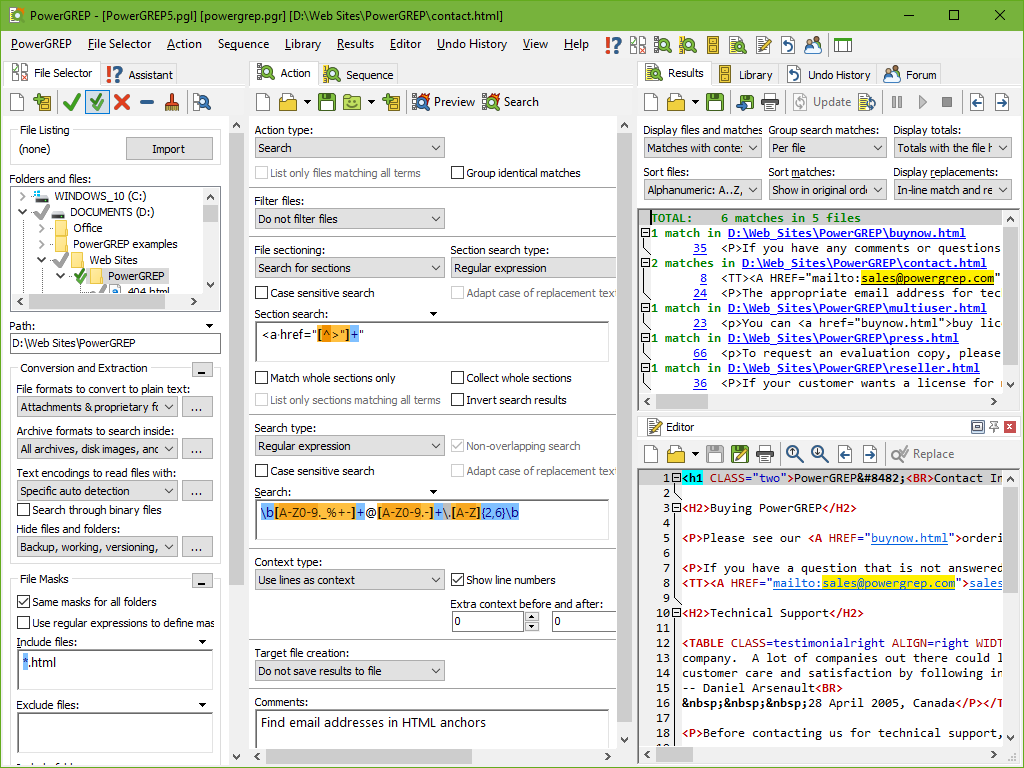
3/ If you love RegExp and want more capabilities in analysing and modifying text within any files, use of the wonderful and robust tool PowerGREP. It could be configured with the advanced UI, then save the configuration file so that it could be run as a command line.

(as per today, it costs 119€ http://www.powergrep.com/)


PS: With far less functionnalities that PowerGREP, but totally free and stable, you have Agent Ransack 2010 that is a file searching tool from Mythicsoft. It is a freeware 'lite' version of FileLocator Pro. However, you cannot replace text in files.


You could also add to your batch file a command to deploy your T-SQL scripts :
osql is a "old" command that comes with SQL Server.

OSQL.EXE -U <username> -P <password> -S <machinename\sqlexpress>
Here is a great oqsl tutorial (french).


Finally, create and call your batch file within your Build Definition, as long as you have extended it with a custom Workflow activity. For instance, Step 4 "Versionning" below does not exist be default,

and comes from a custom workflow activity.


More details on:
http://blogs.msdn.com/b/jimlamb/archive/2010/02/12/how-to-create-a-custom-workflow-activity-for-tfs-build-2010.aspx

and the Best Practices here :
http://blogs.msdn.com/b/aaronhallberg/archive/2009/06/01/writing-custom-activities-for-tfs-build-2010-beta-1.aspx

Sunday, June 6, 2010

What's in the various VS2010 pack ?

VS 2010 has simplified its licenses. Here are the details of the 3 versions of the product :
Visual Studio 2010 Ultimate, Visual Studio 2010 Premium, Visual Studio 2010 Professional.


Well, you could also add to the list, its free version Visual Studio 2010 Express

Visual Studio 2010 and .NET Framework 4 Training Kit


From Microsoft's web site, here is a training course material (165 Mb) to learn when ever you want (it takes about 3 days full time).

FREE Visual Studio 2010 and .NET Framework 4 Training Kit


Day 1
  • Lap Around Visual Studio 2010 (PPT: What's New In Visual Studio 2010)
  • Lap Around .NET Framework 4 (PPT: Whats New In .NET Framework 4)
  • Managed Languages Overview (C#/VB) (PPT: What's New In C# 4 and Visual Basic 10)
  • Entity Framework 4 (PPT: Whats New In Entity Framework 4)
  • ADO.NET Data Services 1.5 (PPT: Whats New In ADONET Data Services 1.5)
  • Velocity (PPT: Introduction to Project "Velocity")
  • Silverlight 3 (PPT: Not included in the kit)

Day 2
  • ASP.NET 4 (PPT: Whats New In ASP.NET Web Forms 4)
  • AJAX 4 (PPT: Whats New In ASP.NET AJAX 4)
  • Web Deployment with Visual Studio 2010 (PPT: Web Deployment with Visual Studio 2010)
  • Windows Presentation Foundation 4 (PPT: What's New in Windows Presentation Foundation 4)
  • .NET RIA Services (PPT: Introduction to .NET RIA Services)
  • Managed Extensibility Framework (PPT: Introduction to the Managed Extensibility Framework)

Day 3
  • WF/WCF 4 (PPT: Workflow 4: A First Look)
  • Parallel Computing with Visual Studio 2010 (PPT: Parallel Computing with Visual Studio 2010)
  • Parallel Computing for Managed Developers (PPT: Parallel Computing for Managed Developers)
  • Visual Studio Team System 2010
  • These are short modules that can be picked based on the interest of the audience.
         . PPT: Introduction: Visual Studio Team System 2010    . PPT: No More Planning Black Box    . PPT: No More Late Surprises    . PPT: No More Stakeholder Surprises    . PPT: No More Parallel Development Pain    . PPT: No More Bewildering Admin    . PPT: No More No Repro
  • Visual Studio Team System 2010
    •    . PPT: No More Build Breaks    . PPT: No More Butterfly Effect    . PPT: No More UI Regressions    . PPT: No More Missed Requirements or Changes    . PPT: No More Waiting for Build Setup    . PPT: No More Performance Regressions