Sunday, October 9, 2016

Cost on Azure : Where to start with Billing API ? [Part 1]

Do you remember this nice CSV file, that you have to process ??
image
  • AccountOwnerId,
  • "Account Name",
  • "ServiceAdministratorId",
  • "SubscriptionId",
  • "SubscriptionGuid",
  • "Subscription Name",
  • "Date",
  • "Month",
  • "Day",
  • "Year",
  • "Product",
  • "Meter ID",
  • "Meter Category",
  • "Meter Sub-Category",
  • "Meter Region",
  • "Meter Name",
  • "Consumed Quantity",
  • "ResourceRate",
  • "ExtendedCost","Resource Location",
  • "Consumed Service",
  • "Instance ID",
  • "ServiceInfo1",
  • "ServiceInfo2",
  • "AdditionalInfo",
  • "Tags",
  • "Store Service Identifier",
  • "Department Name",
  • "Cost Center",
  • "Unit Of Measure",
  • "Resource Group",

This post presents how to have complementary information on your Azure billing and cost prediction at the end of the month.
Microsoft Azure has opened its Billing API for a few years, so we could query it and perform various calculations. Since the EA portal (Enterprise Agreement) has been re-organized, I wanted to show how to get the necessary information.

Here is the new portal : https://ea.azure.com/
image

PRE-REQUISITE

Work with the person in charge of the Enterprise Agreement. This person must have the Enterprise Account Role of “Enterprise Administrator” (usually the super-Admin or the CFO that has purchased Azure).
To find out who he is or to your understand the Enterprise Account Roles, go to http://blog.thavo.com/2014/05/where-to-start-with-microsoft-azure.html 
To help you estimate, you have a public Microsoft tool, although depricated, it could spare you many hours: http://aka.ms/azurecosttool

STEP 1: GETTING THE API ACCESS KEY

Once logged in, go to Reports : https://ea.azure.com/report/usagesummary
and “Download Usage”
image
which brings you to the page : https://ea.azure.com/report/downloadusage
clip_image002
On the far top-right menu, click on “API Access Key”, then you will have access to the Primary Key, that has an expiration date (important to remember particularly if you plug in a SaaS application).
If the Key has not yet been generated, please do so:
image
and confirm”Yes”
image
Then use the Primary Key (that has an expiry date)
image

STEP 2: DECLARE YOUR AZURE PARTNER (ACCREDITED BY MICROSOFT)

For companies using Microsoft Azure, when applicable under conditions of being a very closed partner with Microsoft, you could activate benefits when you declare your “DPOR” Microsoft partner, Digital Partner of Reference.
Illustration :
Let us assume that the DPOR is VISEO of ID=3398971 and that you are using the old Azure portal https://manage.windowsazure.com/ (easier to illustrate):
https://portal.azure.com/#blade/Microsoft_Azure_Billing/managementpartnerblade?ID=3398971

CAUTION : * You must be the owner of the subscription, i.e. the Enterprise Account Role “Account Owner”
* Microsoft is performing a rework to better improve the Billing on the Enterprise Agreement portal. These steps might not work in the near future


1. Log in to the portal
2. Click on your name/email
3. Click “View my bill”
SNAGHTML17ecfe5a
4. It will redirect to another portal called “Azure Account Center" (sometimes it takes a few minutes, for secured login using Single Sign On) : https://account.windowsazure.com/Subscriptions
5. Choose your subscription
6. Select “Partner information”, then fill in the number 3398971. When you click “Check ID” Azure finds the corresponding DPOR.
https://portal.azure.com/#blade/Microsoft_Azure_Billing/managementpartnerblade?ID=3398971
image
It will send an email to your DPOR (provided you have a subscription that has an explicit naming convention).

STEP 3: ACTIVATE YOUR BENEFITS

If you are entitled, you can ask for the benefits, such as discounts on Teevity Cloud Usage Analytics tools: http://www.teevity.com/

Insert the information, based on the previous EA portal,
image

Once DONE, you could access :

Cost per day:
- This type of data visualization is very valuable. For instance, it could be a challenge to understand when occurs various consumuption. For instance when does our Visual Studio Pro licenses occurs ? In the graph below, the patterns is obvious : it happens at the beginning of the month. To be honnest, I though that each VS Pro licences had it’s own 1 month date of anniversary for billing. At the scale of 1000 licences, small optimization can have a major impact !
image

You can have the cost history
image

You will receive email notifications of the prediction of consumption at the end of the month:
image

MORE INFORMATION

For Transferring ownership of an Azure subscription : https://azure.microsoft.com/en-us/documentation/articles/billing-subscription-transfer/

Tuesday, October 4, 2016


How the Cloud changes the developer's work ? highlighted by paper.li


The original article : http://www.viseo.com/fr/tribunes-dexperts/comment-le-cloud-computing-change-le-travail-des-developpeurs

The quote from paper.li :


Saturday, October 1, 2016

Return of experiences on large Azure IoT projects : Microsoft Experiences 2016, Paris

Presenting in Paris, at Palais des Congres.

image

https://experiences.microsoft.fr/Event/session/retour-dexperience-de-projets-azure-iot-large/6ecd723f-3e74-e611-80c3-000d3a2229a6#GvScrEV04JoryjRf.97


HagerServices : ASP.Net Core 1.0 Core CLR + Azure IoT + Rx.Net Microservices Actor Pattern + Data Repository micro-ORM Dapper

image

Monday, July 4, 2016

AgileIoT : Do better IoT developpment

Some of us have been in the M2M industry since 2010, building IoT platform from Scratch. In 2016, the 2 key leaders have emerged in the IoT industry on the PaaS offering : AWS and MS Azure.

Based on everyone of us’ feedback, plus the gathering of many best practices, we ended up formalizing :

logo

bigpicture mini

The last presentation occurred in Florence, Italy ! Most probably in France too. http://www.slideshare.net/felicepescatore/advtorch-agileiot-bettersoftware-2016-workshop

image


(image credits Wikipedia)A collage of Florence showing the Galleria degli Uffizi (top left), followed by the Palazzo Pitti, a sunset view of the city and the Fountain of Neptune in the Piazza della Signoria.

Tuesday, June 14, 2016

Where is my Team Project created directly in Microsoft Azure ?


As per today, this service is in Preview. I had to fiddle around to find my way in. Here is how you could do it from within Microsoft Azure.

Let’s start the investigations, since this is not necessarily intuitive.

Create a “New Team Project (PREVIEW)”

From your Azure subscription, go to “New Team Project” . It is also going to create a VSTS portal.

image

Fill in the information,

image

image

NOW WHAT HAPPENDED ??? Because, we cannot see anything !

image

  • If we try to delete the ressource group, we can see that Azure detects the dependencies to VSTS
  • Looking at the old portal, we cannot see anything either,
    image
  • Looking at the list of “ALL RESSOURCES”, VSTS is still not there.


So where is it ?

  1. Looking at the Logs of the creation of the ARM, Azure has created it … somewhere
    image
  2. Drilling down into the Ressource Group, use the Export Template button, ans you’ll find it :
    image
  3. Let’s use a feautre that I barely use. The “Browse”, and look at Team Services Accountsimage
    and you’ll find it, at LAST !!
    image

It’s good, I can configure few things above.

So what’s the problem ??

The thing is that I cannot access (I least I don’t know) where is the configuration of the Azure Active Directory

image

As a result, in VSTS-Team Project, it is linked to a Default Directory, that I don’t want, and I cannot add any Team Members, from their Live ID. And from VSTS, it is a read only property:

image

I have this :

image

Instead of this, where I can fill in a Microsoft Account, instead of a Corporate account, of a Directory that is no use for me.

image

Tuesday, May 31, 2016

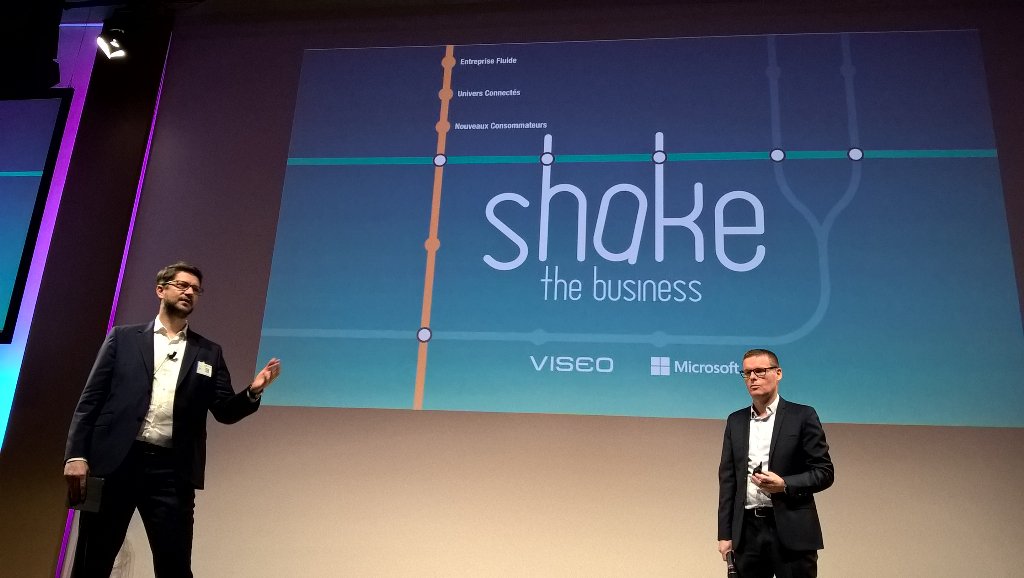
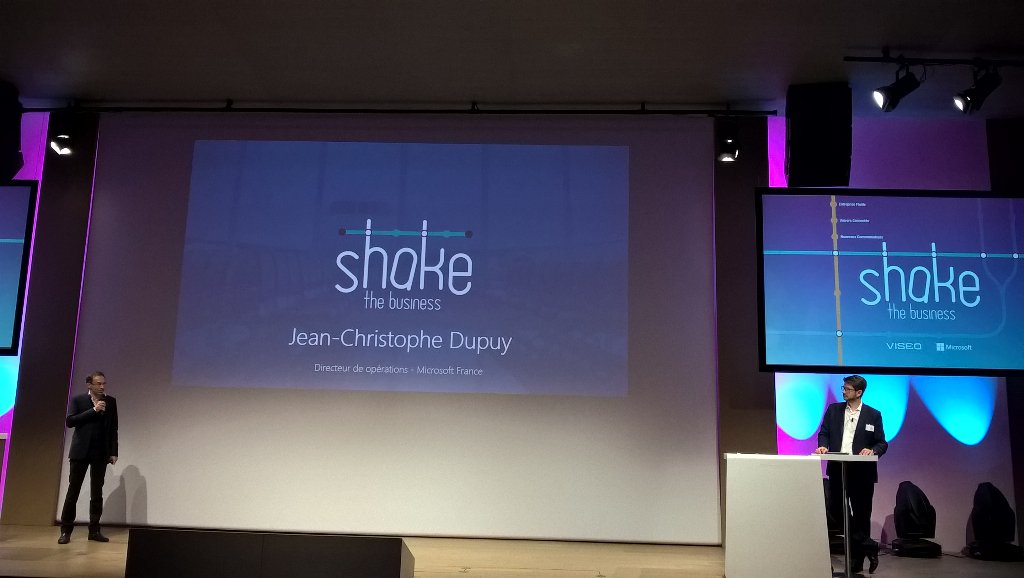
Azure IoT Suite during the “Shake the Microsoft Business” organisez by Microsoft and VISEO


What is Shake the Microsoft Business ?

It is an event that is organized both by Microsoft and VISEO, to strengthen the business between VISEO and MICROSOFT, and VISEO/MICROSOFT and the customers (mostly selected French CxOs).

Novel technologies are presented by Microsoft and VISEO CxO, and hands-on labs are organized and showroom presented.
I had the pleasure to present Azure IoT Suite, with hands-on labs.

Alain Bernard, Sales Leader, Strategic Partnership & Alliances Director (right)
(Directeur de la division PME/PMI et partenaires de Microsoft France)
CxO Eric Perrier, CEO VISEO Group (left)


Jean-Christophe Dupuy, CTO, Microsoft France and Eric Perrier, CEO VISEO Group (right)


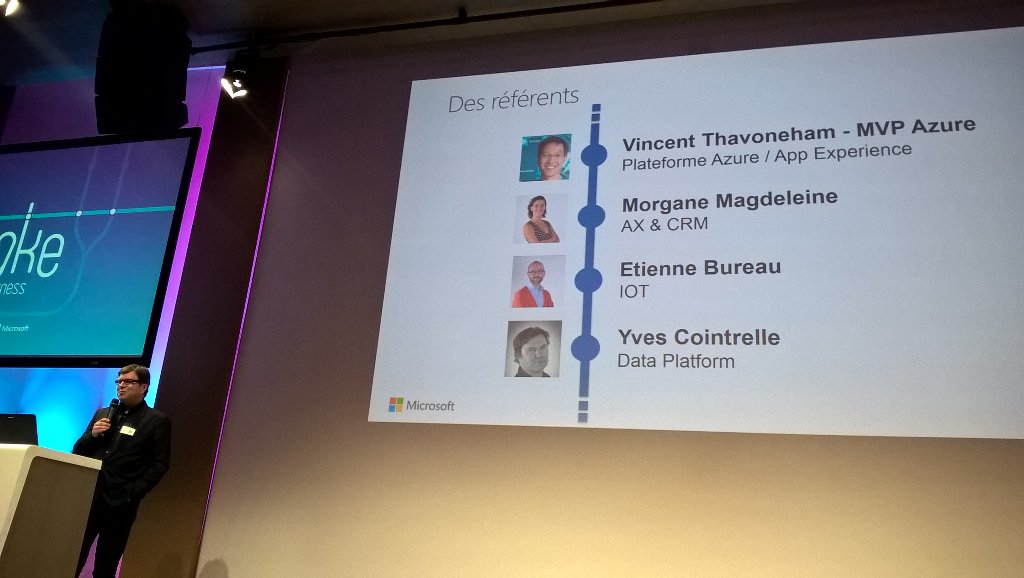
VISO unvieled the fact that I became the “Azure Platform and App Experience” Leader for VISEO Group, on the top of my current role of “Microsoft Practice Manager”.


Hands on labs on bots, etc… and Azure IoT Suite.

I presented Azure IoT Suite with Frederic Pottier, our IoT Lead senior Architect.

image  image image

https://azure.microsoft.com/en-us/solutions/iot-suite/

Thursday, April 21, 2016

Free Azure IoT Training at the Mix-IT !


At the MIX-IT 2016, on April 21 and 22nd April, people travelled from Paris and abroad to see for instance Joel Spolsky the co-creator of StackOverflow (or in 2015, Dan North, the creator of BDD).

As for me, to explain the beauty of a “New generation of IoT” relying heavily on PaaS IoT (globally available worldwide at the end of 2015), I was offering a FREE one day-seminar on Azure IoT (Java, .Net, PHP…), in Wednesday May 11th 2016.

(Photo credits : MIX-IT 2016)
image

image